
How to Secure, Store, and Share your important life Documents
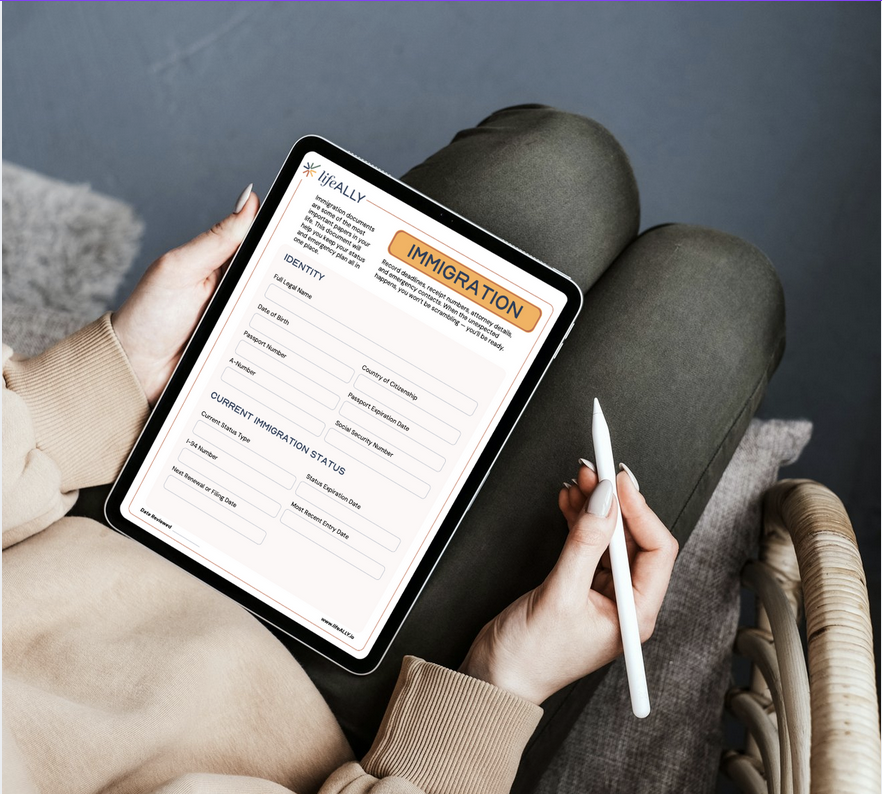
The most important thing you can do for yourself and your family is get all of your important information in one place.
The LifeFile and HomeFile templates can contain highly sensitive personal information. Before storing or sharing them, we strongly recommend password-protecting your PDFs, saving them securely in Proton Drive, and thoughtfully choosing what to share and with whom.
This guide walks you through:
Splitting your PDF into separate files
Password-protecting your PDF
Saving your files to Proton Drive, the only encrypted file storage
Sharing your files securely with someone you trust
Splitting a PDF into separate files
On a Mac
After you have downloaded and filled out your LifeFile or HomeFile templates, the next step is splitting your PDF into individual templates. Splitting PDFs allows you to share only what’s necessary (for example, sharing medical info without financial details).
Open the PDF in Preview
Select View → Thumbnails
Select the pages on the left-hand thumbnail column you want to combine by holding down the Command button while selecting them.
Drag pages you want to combine onto your desktop. This will create a new file.
Rename the new file. We suggest the following naming convention: YourName_TemplateName_DateLastReviewed. For example, JaneDoe_MedicalHistory_Feb2026
You will have a lot of files on your desktop, but don’t despair, we will be moving them to an encrypted file storage shortly!
On a PC
After downloading your LifeFile or HomeFile templates, you will need to split them into individual templates before filling them out. This process takes a few extra minutes, but it is the only way to ensure your information stays safe and secure.
Select your file to upload
Split file using scissors. We recommend splitting the file based on sections
Save the files to Adobe
Download all the files to your computer and rename them. We recommend using the following naming convention: YourName_TemplateName_DateLastReviewed. For example, JaneDoe_MedicalHistory_Feb2026
Fill out your templates.
Remember, you will have A LOT of templates on your desktop, but it’s okay! The next step is to password protect your templates.
How to Password-Protect a PDF
Password protection ensures that only someone with the password can open the document.
On a Mac
Open the PDF in Preview
In the top menu, click File → Export
Click Permissions
Check the box Require Password to Open Document
Create a strong password
Re-enter the password to confirm
Create an Owner Password (this password is ONLY for you, write it down and save it)
Click Apply
On a PC
Open the PDF in Adobe Acrobat
Click All Tools (or Tools)
Select Protect a PDF
Choose a password
Select Require a password to open the document
Create a strong password
Save the file
Saving files to Proton Drive
At lifeALLY, the privacy and security of your personal information is our top priority. That's why Proton Drive is our preferred file storage solution. Unlike traditional cloud storage options, Proton Drive is end-to-end encrypted, meaning your files are completely protected and no one — not even Proton — can access your data. Proton was built from the ground up with privacy in mind, making it the gold standard in secure file storage. When it comes to storing your most sensitive personal and home information, we refuse to cut corners. Your data deserves the best protection available, and Proton Drive delivers exactly that.
Steps to create a Proton Drive account:
Create an account by clicking here: https://proton.me/drive
Click Get Proton Drive and select Create a Free Account
Add your email address and password and click Start Using Proton Drive Now
It will set up a recovery kit, download the kit and print it out. Keep it safe in your file box.
Check the box: I understand that if I lose my recovery phrase, I may permanently lose access to my account and click Continue
Set a display name (example: your name) and click Continue
Note: Proton Drive gives you 5G of storage for free which is more than plenty to save all your templates. If you would like to Upgrade, please do! One of the great things about upgrading is you will be able to add an emergency contact.
Uploading your templates and sharing with your VIP
Create a folder by clicking the big + sign on the left and name it Name_LifeFiles (example: JaneDoe_LifeFiles). This way, if you were to save your spouse’s LifeFiles, you will both have different folders.
For couples who filled out joint files, create a 3rd folder with both of your names (example: JaneJohnDoe_LifeFiles)
If you both have separate Proton Drive logins, we recommend saving your joint information only on one drive. When it comes time to review and update your information, you only want to update one file.
Upload your password-protected PDFs
Share the files you want by clicking the 3 dots to the right of the file and click Share
Add the email address of the person you want to share to and change them from Editor to Viewer and click Share.
Note: The person you are sharing files with will receive an email with a link to access them. They will need to create a Proton account with a username and password to view your files, which will appear under their Shared Files tab on the left side.
If you have any questions, or need any help, we are there for you.
Frequently Asked Questions
Do I need to split my PDF before filling it out if I use a PC? Yes! We recommend splitting your templates before filling them out so your personal information stays organized and secure from the start.
Why do I need to password-protect my PDFs? Your templates may contain highly sensitive personal information — medical history, financial details, and more. Password-protecting each file ensures that only the people you choose can access them.
Do I need to remember a separate password for every file? We recommend using a strong, consistent password system. Just make sure to write down your Owner Password and store it somewhere safe, like your filebox.
Why do you recommend Proton Drive? Proton Drive is our preferred file storage solution because it is end-to-end encrypted, meaning no one — not even Proton — can access your files. It was built from the ground up with privacy in mind.
How much does Proton Drive cost? Proton Drive offers 5GB of free storage, which is more than enough for all of your templates. Upgrading is optional but does come with added benefits, including the ability to add an emergency contact.
What happens when I share a file with someone? The person you share with will receive an email with a link to access the file. They will need to create a free Proton account to view it, and your shared files will appear under their Shared Files tab.
Can I share some files without sharing others? Absolutely — that's one of the main benefits of splitting your PDF into individual files. You can share your medical information with a doctor or family member, for example, without sharing your financial details.
What if I have both individual and joint files as a couple? We recommend creating separate folders for each person and a third folder for any joint files. To keep things simple, store joint files on only one drive so you're never updating information in two places.
What if I lose my Proton Drive recovery kit? Your recovery kit is very important — if you lose it and forget your password, you may permanently lose access to your account. We recommend printing it out and storing it somewhere safe, like a fireproof filebox.
What if I need help with any of these steps? We're here for you! Reach out to us anytime and we'll be happy to walk you through the process. Our email is hello@lifeALLY.io or you can contact us through our contact page here: https://www.lifeally.io/contact
